GAME NOTE 01
Deltarune Fight Simulator controls
Deltarune Fight Simulator offers Desktop and Mobile controls. Select mouse and keyboard input or on-screen buttons during setup; the Options app lets you change this later.
01•STATUS READY
Play Deltarune Fight Simulator online with Scube3000’s Battle Simulator V4. Start the browser game below, choose your controls and create or load a profile.
Different opponents. Their own controls. Pick a game to begin.
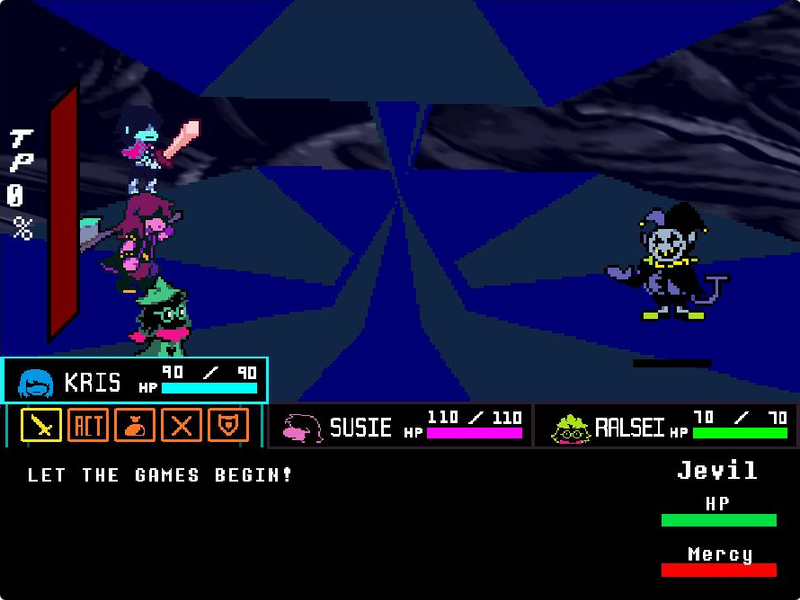
Step into Jevil’s arena with Kris, Susie and Ralsei. Play tripoid’s fan-made battle, choose your party’s actions and dodge the chaos.
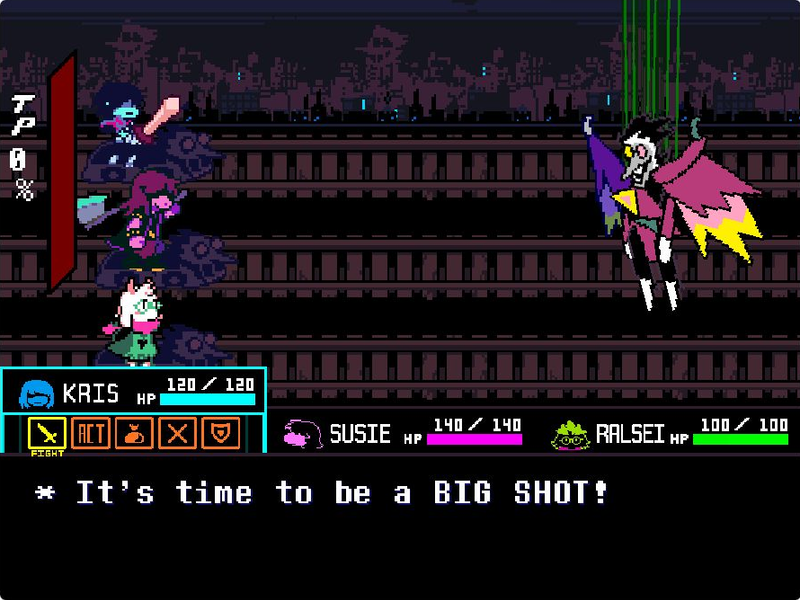
Take on Spamton NEO in The_CommanderRS’s fan recreation. Navigate party commands, move your soul and fire with Z.
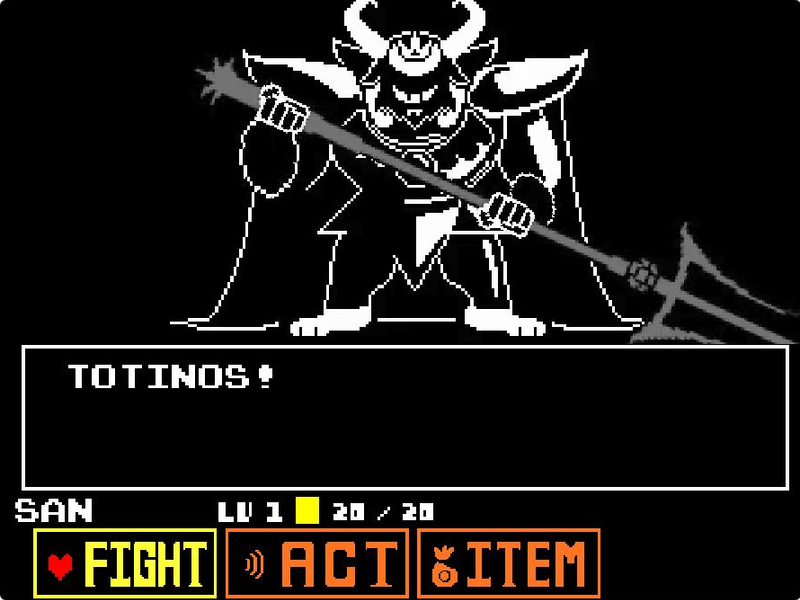
Face Asgore in eekeekturtle’s UNDERTALE fan battle. Choose a command, time your attack and move through the next pattern.
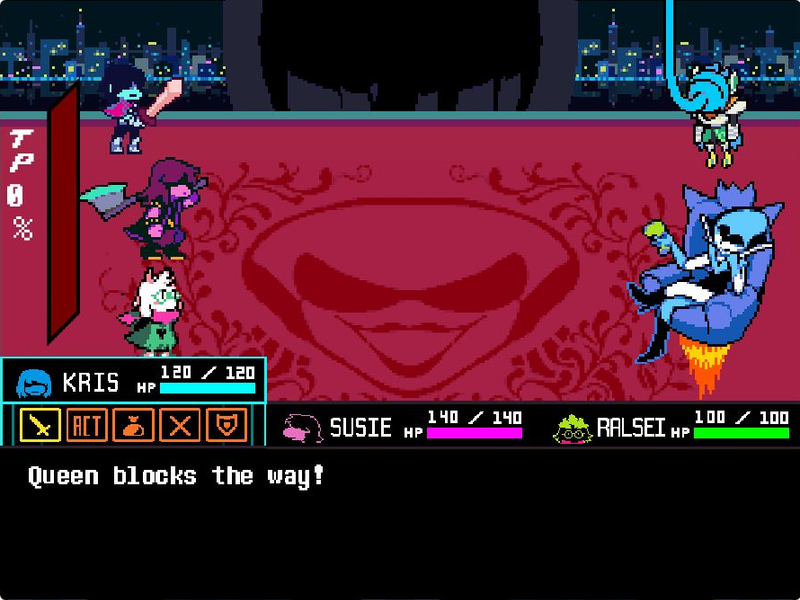
Face Queen and Berdly with Kris, Susie and Ralsei in tripoid’s fan battle. Pick your party’s commands and dodge the next attack.
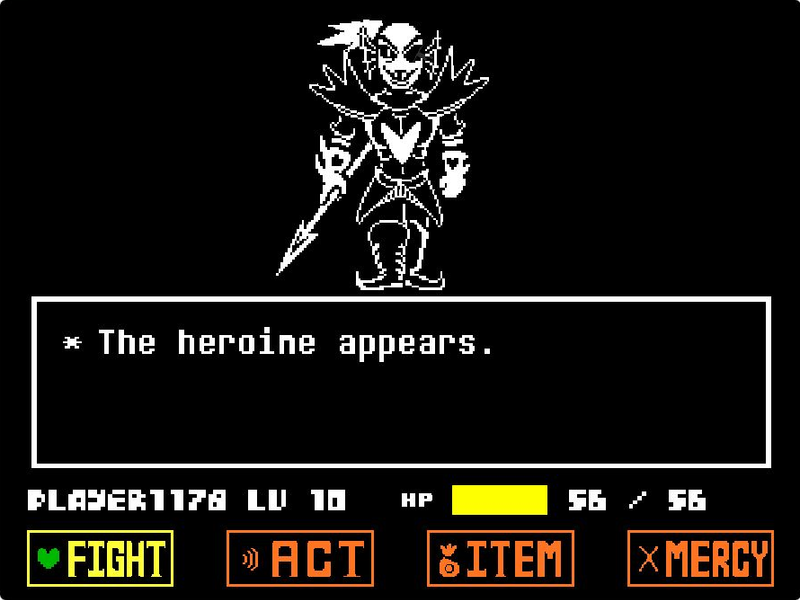
Challenge Undyne the Undying in tripoid’s UNDERTALE fan recreation. Choose Play, navigate your commands and face the spear-wielding heroine.
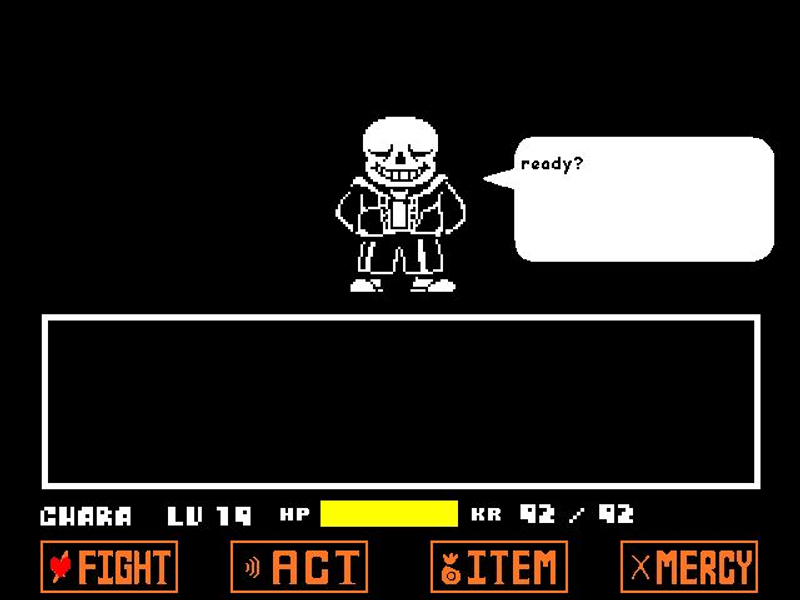
Play Jcw87’s Bad Time Simulator. Face Sans or choose Practice and Single attack modes to work on the encounter one attempt at a time.
Deltarune Fight Simulator works best with a desktop keyboard. For touch input, select Mobile controls during profile setup to enable the D-pad and Z/X buttons. Performance and fullscreen support vary by device and browser.
Start Deltarune Fight Simulator with the green flag inside the player. Wait for the profile menu, then click inside the game to focus keyboard input.
Choose Create new profile, select Desktop or Mobile controls, enter a name and confirm. Returning to Deltarune Fight Simulator with an exported save? Choose Load existing profile.
Follow the app menus to enter Deltarune Fight Simulator. Use Z to confirm, X to cancel, and arrow keys or WASD to navigate. Check the in-game manual for battle rules.
Before leaving Deltarune Fight Simulator, obtain your save from Options. The page’s Reload button restarts the entire player, so save first rather than treating it as an in-game retry.

Deltarune Fight Simulator keyboard reference: arrows or WASD to move, Z to confirm, X to go back
Reload restarts Deltarune Fight Simulator. Export your save through Options before refreshing, then use Load existing profile when you return.
Deltarune Fight Simulator offers Desktop and Mobile controls. Select mouse and keyboard input or on-screen buttons during setup; the Options app lets you change this later.
Before closing Deltarune Fight Simulator, obtain your save through Options. Keep the exported data somewhere safe; this website cannot back up or recover your progress.
New to Deltarune Fight Simulator? Open V4’s in-game instruction manual for battle rules and settings. Learn the menu inputs before concentrating on an encounter’s attack patterns.

Deltarune Fight Simulator is this site’s browser play page for Battle Simulator V4, a Scratch fan project by Scube3000. The game runs through TurboWarp and takes inspiration from DELTARUNE’s battles. You can launch it here without installing a separate game client.
Deltarune Fight Simulator is an independent fan resource, not the full DELTARUNE game or an official chapter release. DELTARUNE belongs to Toby Fox and the original team; the V4 project retains its creator’s credits. Other encounters, including Jevil, Spamton NEO and the UNDERTALE-inspired battles, have separate pages in the game selection above.
This Deltarune Fight Simulator page loads Scube3000’s Battle Simulator V4, Scratch project 613803664, through TurboWarp. It is a standalone fan project inspired by the original battles, not an official DELTARUNE release.
Press the green flag to launch Deltarune Fight Simulator. Choose Create new profile or Load existing profile. For a fresh start, select your control scheme, enter a player name and confirm with the on-screen buttons.
Click inside Deltarune Fight Simulator so the player receives keyboard input. Desktop controls use arrows or WASD to move, Z to confirm and X to cancel. If you selected Mobile controls, use the on-screen buttons or switch modes in Options.
Deltarune Fight Simulator includes Mobile controls with a D-pad and Z/X buttons. Select that mode during setup and try landscape orientation. Touch performance varies; use a desktop keyboard if your device cannot run the player comfortably.
Before leaving Deltarune Fight Simulator, obtain your save through the in-game Options app. Keep it for Load existing profile next time. Do not assume a refresh preserves progress: this site does not provide cloud saves or backups.
Give Deltarune Fight Simulator time to load its assets and press the green flag. If loading stalls or question-mark sprites appear, save any accessible progress before reloading. Try again later if the embedded project remains unavailable.